
Create Your First OKR
This page explains how to create a cycle, objectives, and key results in Objectives (OKR). OKR is available on the Enterprise plan. For how OKR works, see Objective and Key Results (OKR).
Who can create what
| Item | Who can create it |
|---|---|
| Cycle (period) | Organization admins |
| Organization objectives | Organization admins |
| Team objectives | Leads of that team |
| Personal objectives | The member, or the member's lead |
1. Create a cycle (admins)
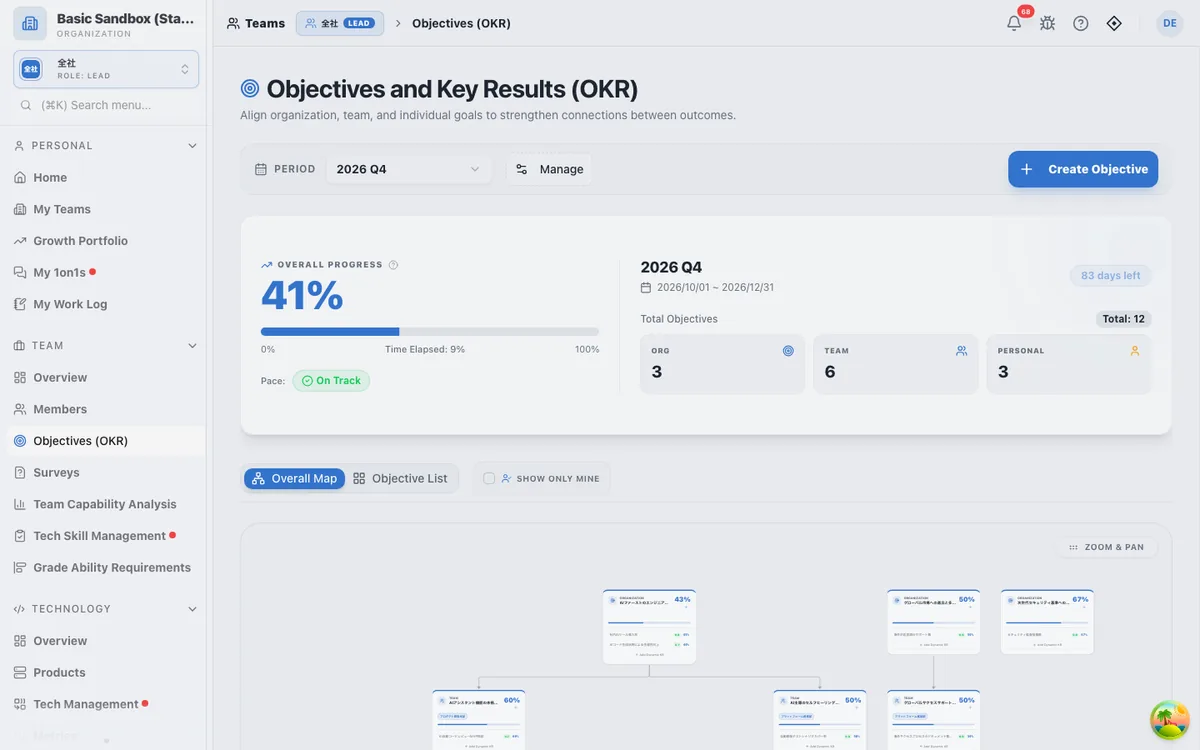
- Open Team > Objectives (OKR) and select "Manage".
- Select "New", enter a cycle name (for example,
2026 Q4), a start date, and an end date, and create it.
2. Create an objective
- Choose the cycle in "Period" at the top of the screen.
- Select "Create Objective".
- In "Target Layer", choose Organization, Team, or Personal.
- For team and personal objectives, choose the higher-level objective in "Parent Objective". Progress then rolls up to the parent automatically.
- Enter the objective title and, if needed, details, then select "Create".
3. Add key results
- Open the objective and select "Add KR".
- Fill in the following:
| Field | What to enter |
|---|---|
| Name | For example: increase releases to 5 per week |
| Starting value and target value | Used to calculate progress. They must differ |
| Unit | For example: %, times, days |
| Calculation logic | Additive (increase), Improvement (decrease), or Threshold (achieved when the target is reached) |
| Data integration | Leave it as "Manual Input (No sync)" to enter values yourself |
- Select "Create".
Calculate results automatically (Dynamic KR)
If you choose a data source in "Data Integration", the current value is calculated automatically from data in EM-OS, such as the number of 1on1s held, tech debt resolved, project progress, or SLO achievement. For the full list of sources, see Dynamic Key Results.
4. Update progress
- Manual key results: Open the key result and update the current value and confidence (0.0 to 1.0).
- Dynamic key results: Updated automatically about 6 hours after the last sync. Select "Sync" to update right away.
- During a 1on1: Changing confidence in the "Personal Objectives (OKR)" panel on the 1on1 screen records the change in the 1on1 notes automatically.
Select "View History" to see progress and confidence over time.
5. Review at the end of the cycle
At the end of the cycle, each person enters a self-assessment score (0.0 to 1.0) and a review comment to close their objectives. See End-of-Cycle Review.