
Run a 1on1
This page explains how to schedule a 1on1, prepare topics, and record the session. 1on1s are available on all plans.
1. Schedule a session
- Open Personal > My 1on1s and select "New Session" in the top right.
- Choose the other person and the date and time, then create the session.
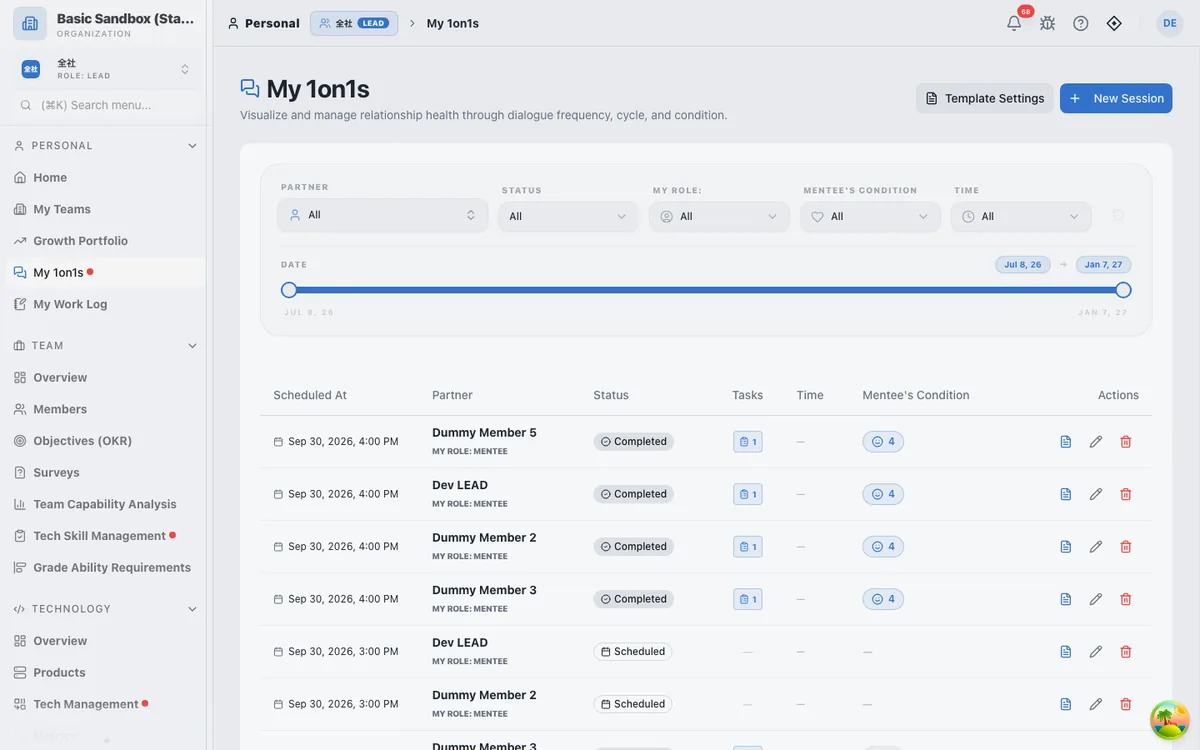
You can filter the list by partner, status, your role (mentor or mentee), condition, and period. Register agenda formats you use every time in "Template Settings".
2. Prepare the agenda
Open the 1on1 and add topics in the "Agenda" section. Both the member and the lead can add topics, so both sides can prepare in advance.
3. Run the session
- Start with timer: Show the elapsed time while you talk.
- Presentation Mode: Switch to a view suited to screen sharing in online meetings.
- Notes: Record what you discussed. Linking skill-related topics to a skill category gives you evidence for evaluations.
- Actions: Register what to do before the next session, with an owner and a due date.
- Personal Objectives (OKR): Check objective progress and update confidence. The change is recorded in the notes automatically (OKR).
4. Afterwards
When you complete a 1on1, its status in the list changes to "Completed". You can see the number of registered actions in the "Tasks" column.
EM-OS uses AI to analyze trends in members' condition from 1on1 records. See Personal & Growth.