
Admin Setup Guide
This guide takes an organization admin from the first sign-in to the point where members can be invited. Work through the steps in order; setup takes about 30 minutes.
| Step | Task | Screen |
|---|---|---|
| 1 | Complete the initial setup (onboarding) | Shown automatically on first sign-in |
| 2 | Check your organization details | Admin > Organization |
| 3 | Create teams | Admin > Team Management |
| 4 | Set up roles and grades | Admin > Roles, Grade Management |
| 5 | Invite members | Admin > User Management |
| 6 | Connect external tools (optional) | Admin > Integrations |
1. Complete the initial setup (onboarding)
Once your trial application is approved, you can sign in to EM-OS with your admin account. On the first sign-in, the following screens appear in order.
- Account Settings: Set your display name and role (job title).
- Org Profile Settings: Set the organization name, domain, and logo. Once its ownership is verified, the domain decides which employees can join without an invitation (see "Verify ownership of the domain" below).
- Team Topology Configuration: Register your first teams and the relationships between them. You can change these later in Team Management, so the main teams are enough for now.
- Ready: Shows what to do next, such as inviting members and setting roles.
2. Check your organization details
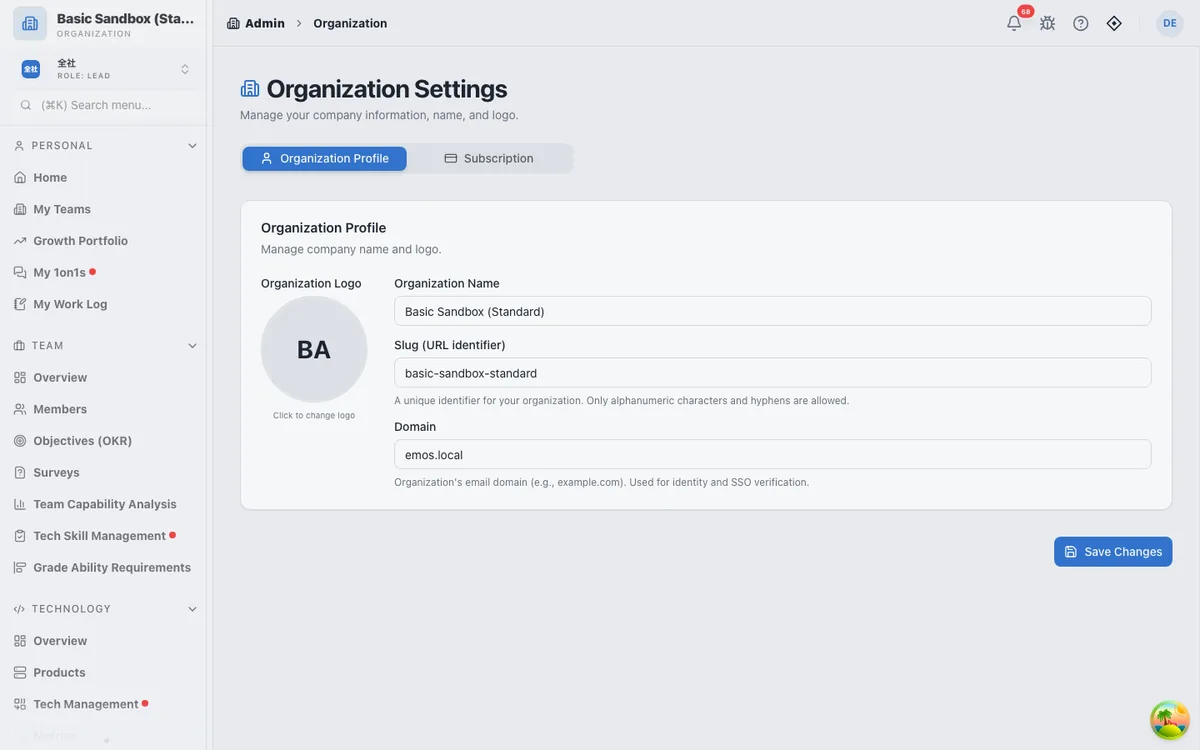
In Admin > Organization, check the organization name, slug (URL identifier), domain, and logo. On the "Subscription" tab, you can check and change your plan and payment method.
IMPORTANT
Once the ownership of the domain is verified, anyone who signs in with an email address on that domain can join the organization through onboarding without an invitation. To bring in people outside your company, use an invitation link regardless of the domain.
Verify ownership of the domain
Once the ownership is verified, people with an email address at that domain can join the organization without an invitation. Without verification, joining by invitation link still works.
A registered domain stays "Not verified" until you prove that you own it, and it is not used for joining by domain until then. This prevents anyone from registering another company's domain to pull in that company's employees.
NOTE
The verification (adding a TXT record) is done not in EM-OS but in the DNS service that manages your domain (the console of a registrar or DNS provider such as Cloudflare, Route 53, or Google Cloud DNS). There is no place in EM-OS to set it. It is usually done by the person who manages your company's domain (such as IT).
- In Admin > Organization, enter the domain (for example,
example.com) under "Organization Profile" and save it. Domains of free email services such as Gmail can't be registered. - Copy the type, host, and value shown under "Domain ownership". To ask someone else, click "Copy for your request" to copy the three values and the points to watch at once.
- In your DNS service's console, add a record of type "TXT". The host is "@" (the domain itself); some services want it left blank or set to the domain name (for example,
example.com). Paste the value that starts withem-os-verification=exactly as it is. - Wait for the change to reach DNS. It often takes a few minutes, but can take a few hours.
- Go back to "Domain ownership" and click "Verify". When the status becomes "Verified", joining by domain is enabled.
Open "Detailed steps" on the card to see the same steps and the following points.
- Keep the TXT record in place after verifying.
- If you change the organization's domain, the new domain is "Not verified" again and needs to be verified again.
- Only one organization, the one that verified it, can use a domain. A domain already verified by another organization can't be verified.
- Domains registered before this feature was introduced are also "Not verified". To use joining by domain, verify them with the steps above.
If you see "The TXT record wasn't found yet", check the following.
- The change hasn't reached DNS yet: wait a while, then click "Verify" again.
- The host is wrong: check that the record is on "@" (the domain itself) rather than a subdomain, and that the name isn't doubled like
example.com.example.com. - The value is wrong: check for spaces before or after it, quotes (
") you added that end up doubled, or a missing part, then copy and paste the value again.
3. Create teams
In Admin > Team Management, select "New Team" to create a team. For each team you can set the parent team, the topology type (Stream-aligned, Platform, and so on), and its interactions with other teams.
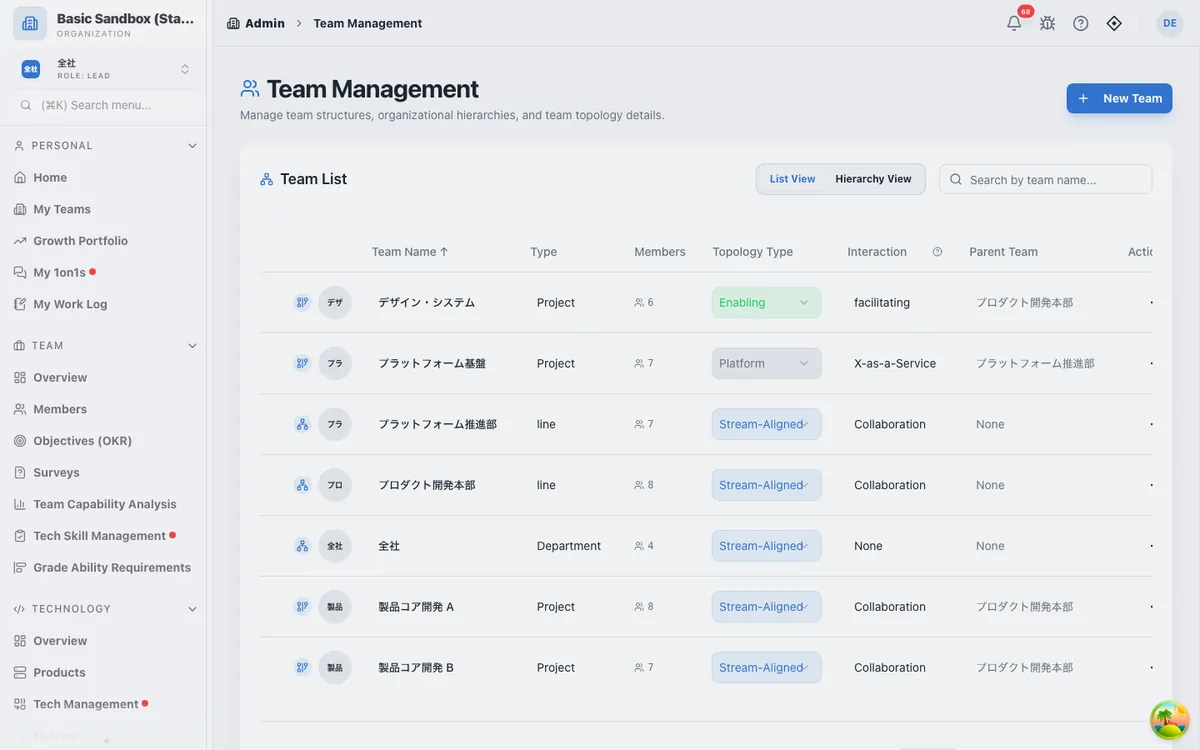
For what topology types and interactions mean, see Team & Organization Management.
4. Set up roles and grades
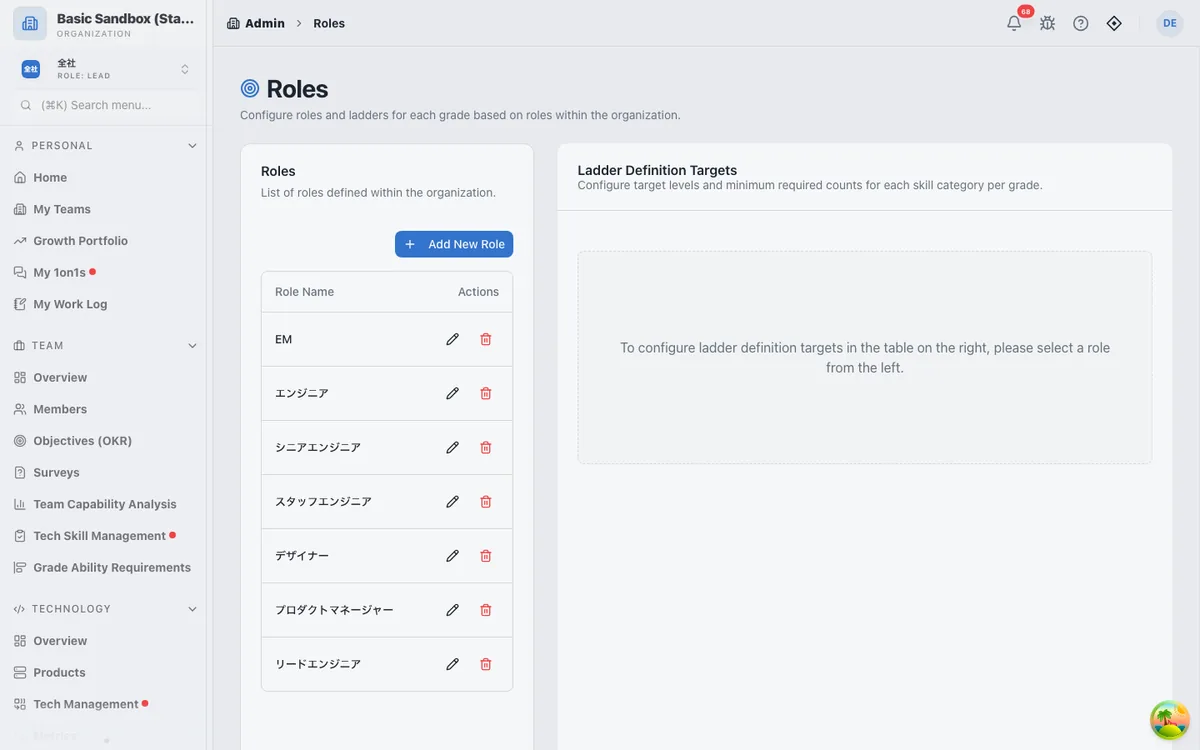
Admin > Roles comes with roles (job titles) such as Engineer, Designer, and Product Manager. Add, rename, or delete them to match your company. Select a role to set the skill level expected at each grade (ladder requirements).
Set company-wide evaluation criteria in Admin > Grade Management. These criteria are used in each member's Growth Portfolio and in Team Capability Analysis.
5. Invite members
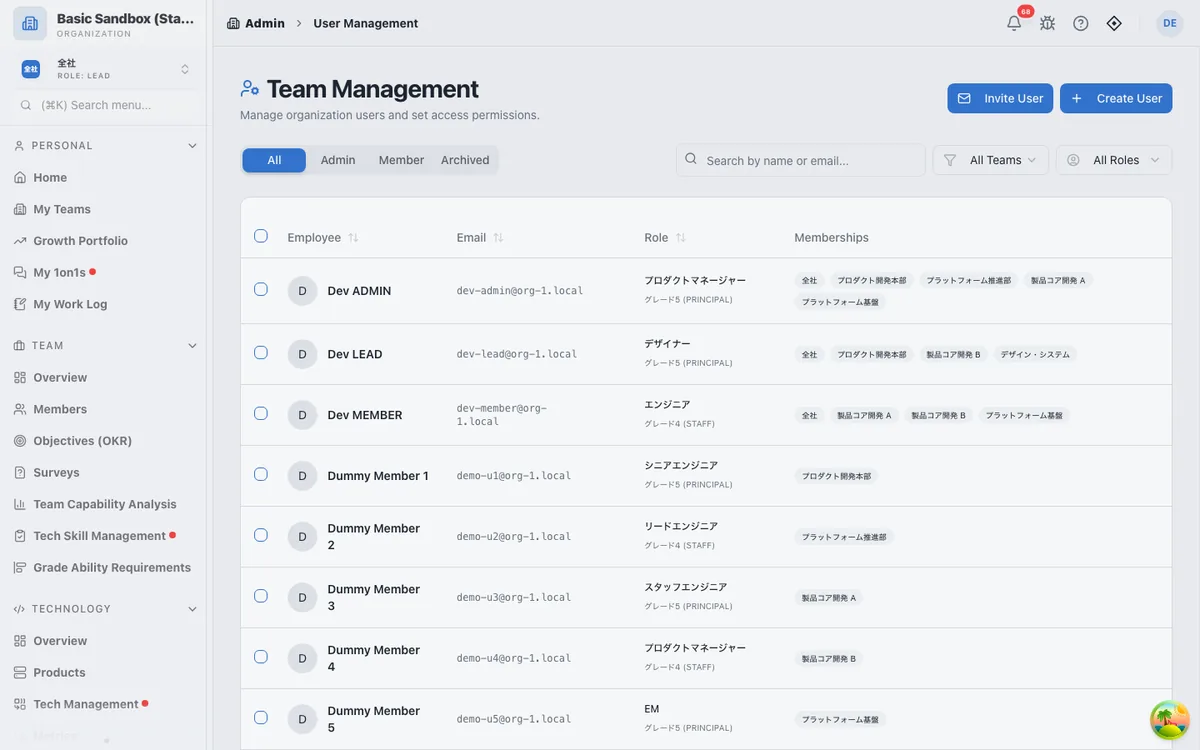
In Admin > User Management, select "Invite User" to issue an invitation link for each member. See Invite Members for the steps.
6. Connect external tools (optional)
Connecting GitHub lets EM-OS calculate development metrics such as deployment frequency (Four Keys) automatically. You can also connect Jira, Slack, Google Calendar, AWS, and GCP. See Connect External Tools. Integrations are available on the Enterprise plan and above (Plans and Features).
After setup
- Create your first OKR
- Run a 1on1
- For how permissions work, see Administration.